Laptop Repair & Guide
How to Restore Factory Settings on MSI Prestige 13 (One Key Recovery)
Jul
Is your MSI laptop running slow, experiencing system errors, or ready for a fresh start? MSI laptops come with a built-in One Key Recovery utility that allows you to reset your device back to its factory default settings quickly and easily without needing external installation media.
⚠️ Important Before You Begin
Warning: Performing a factory restore will erase all personal data, files, and settings on your primary drive. Make sure to back up all your important files, photos, and documents to an external drive or cloud storage before starting.
Step-by-Step Recovery Guide
Step A: Power Off Your Laptop
Turn off your MSI laptop completely.
Step B: Boot Into the Recovery Menu
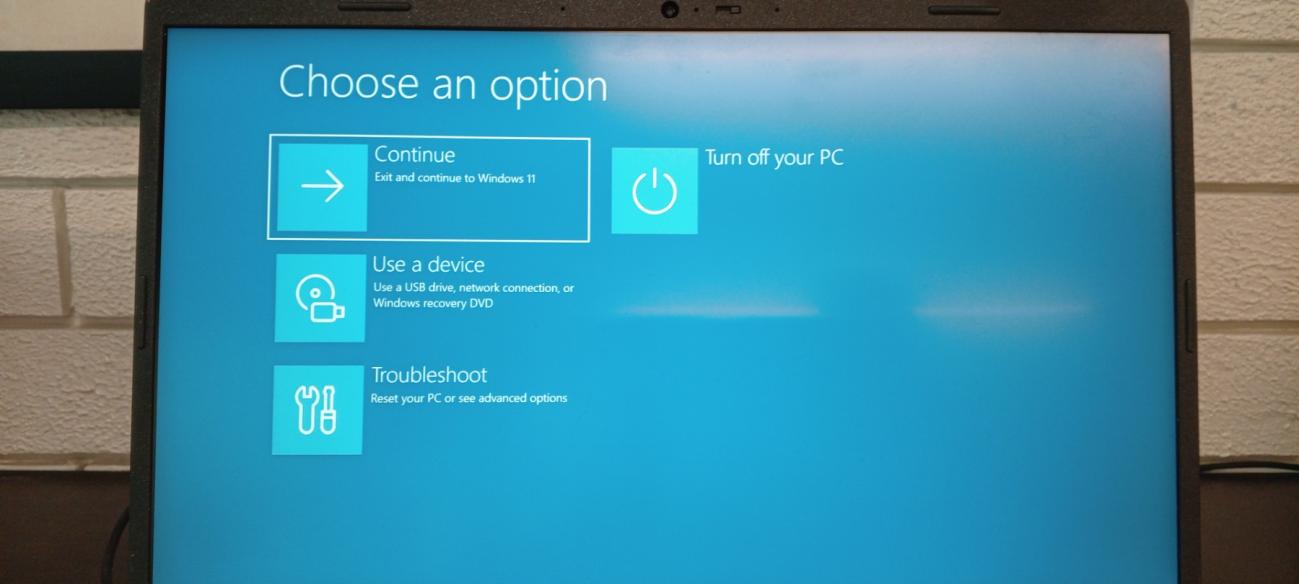
Press the Power button to turn on the laptop, then immediately press the F3 key repeatedly until the system recovery screen appears.
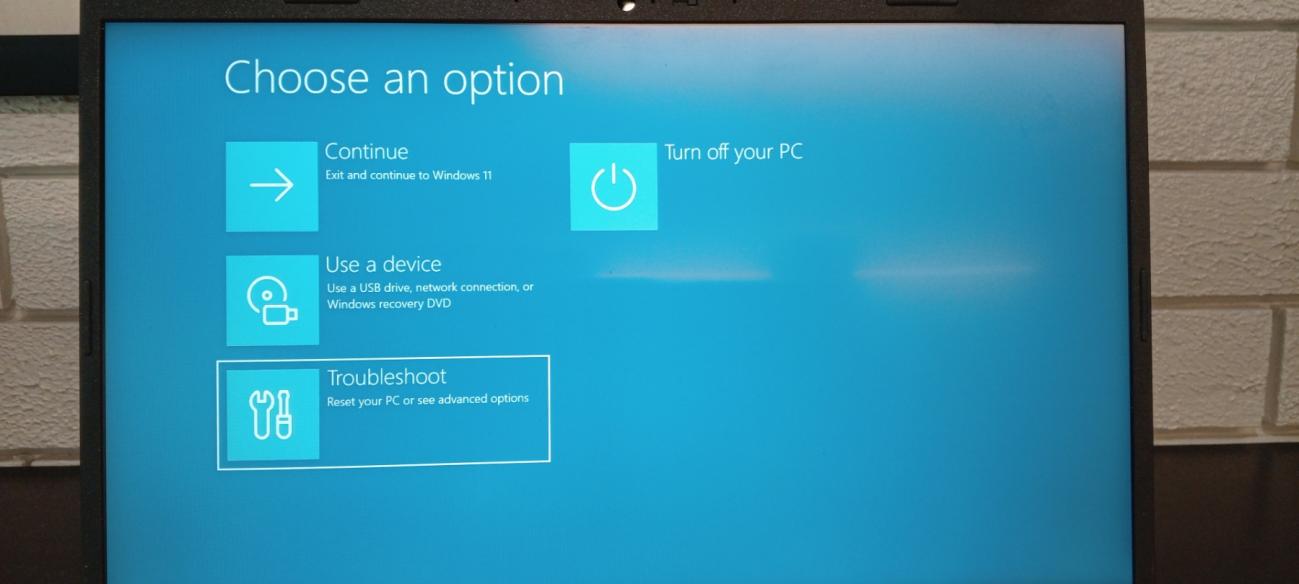
Step C: Select Troubleshoot
On the “Choose an option” screen, click on Troubleshoot.
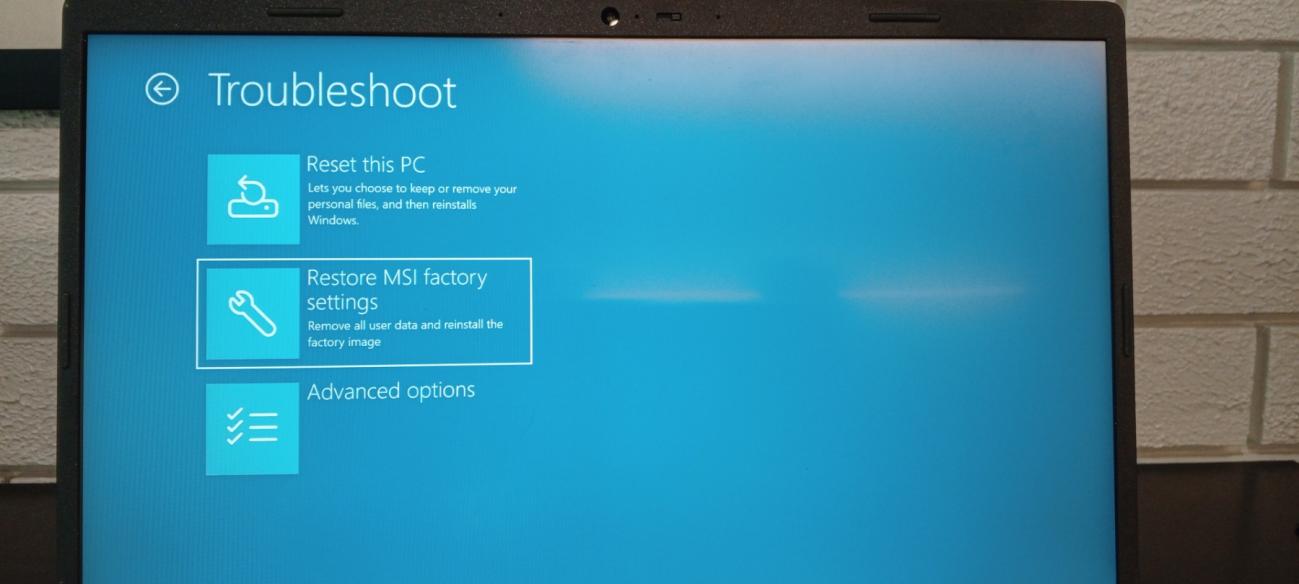
Step D: Choose MSI Factory Restore
In the Troubleshoot menu, select Restore MSI factory settings.
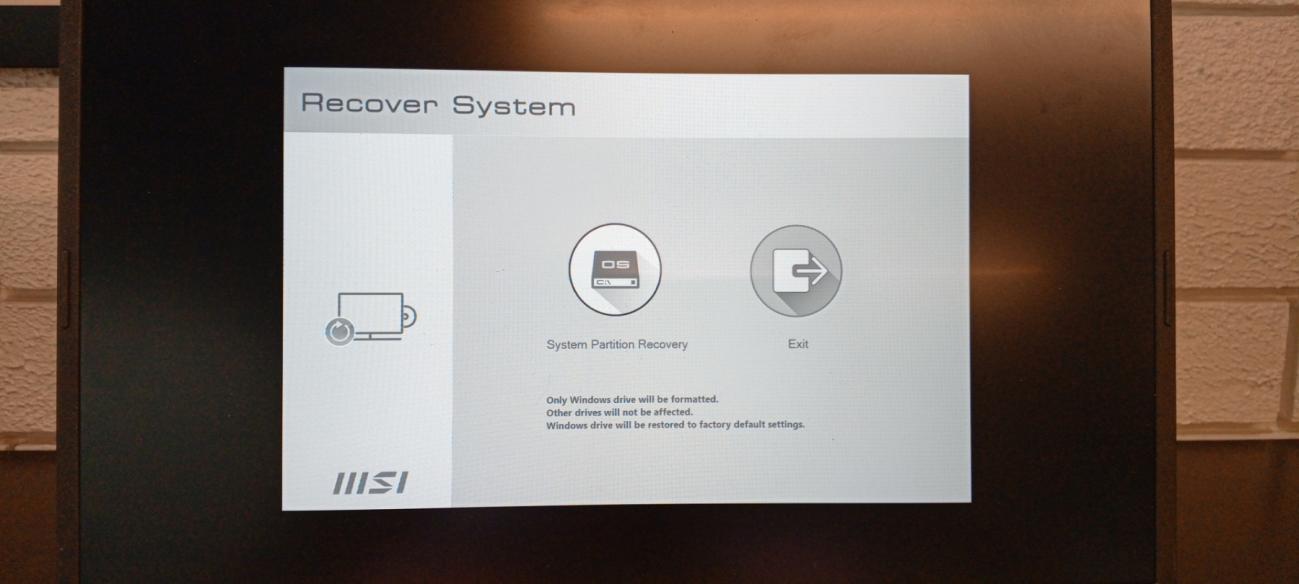
Step E: Select System Partition Recovery
On the Recover System menu screen, select System Partition Recovery.
Step F: Confirm the Reset
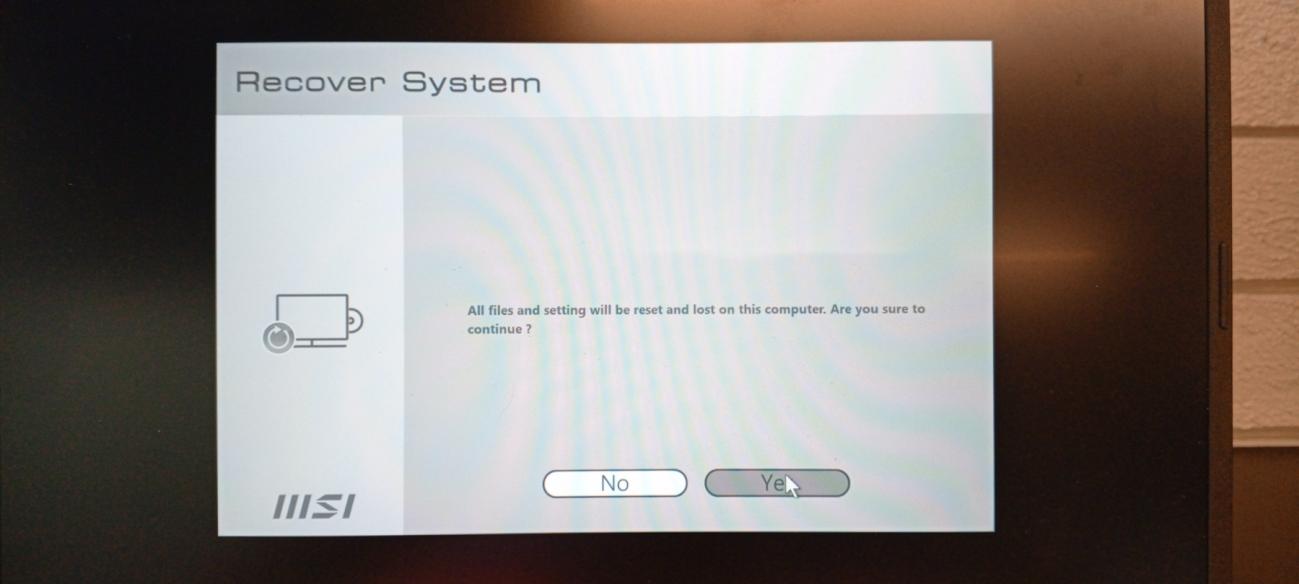
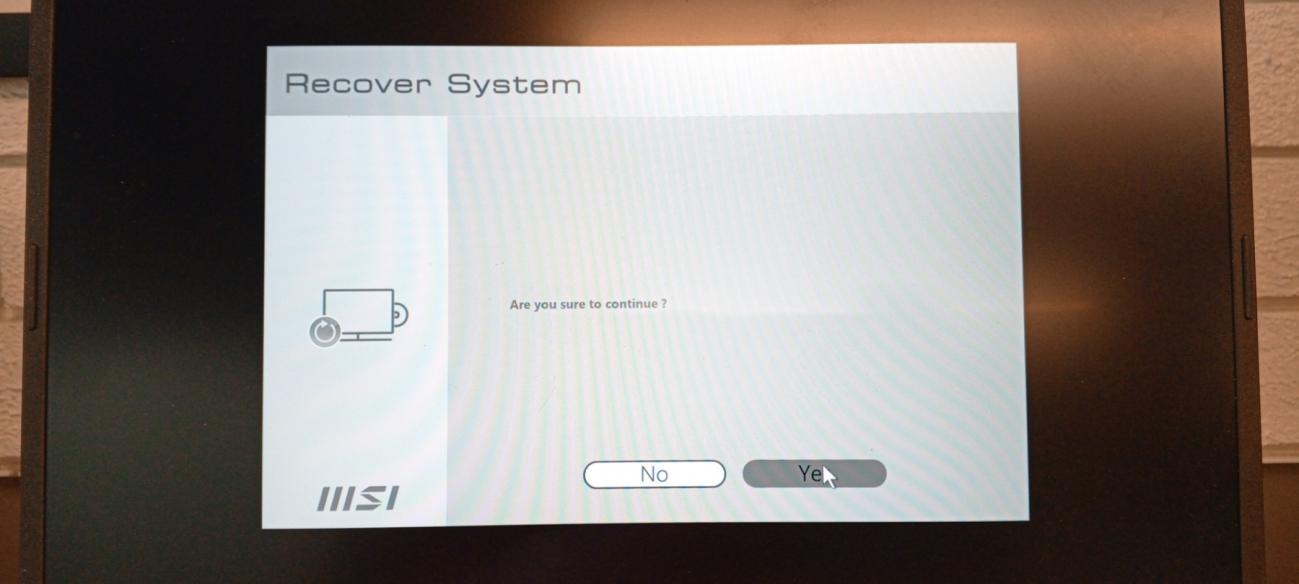
A warning prompt will notify you that all files and settings will be lost. Click Yes when prompted to confirm.
Step G: Connect Your Power Adapter
Make sure your laptop charger/AC adapter is plugged in. Keeping your laptop powered prevents sudden shutdowns or interruptions during the restoration process.

Step H: Wait for the Process to Complete
Sit back and wait a few minutes while the system performs the factory restoration.

Step I: Acknowledge Successful Recovery
When the screen displays “Windows Recovery is successful,” click OK.

Step J: Reboot into Windows 11
Select Continue (Exit and continue to Windows 11). Your laptop will reboot into its default factory state, where you can complete the initial Windows setup screen.